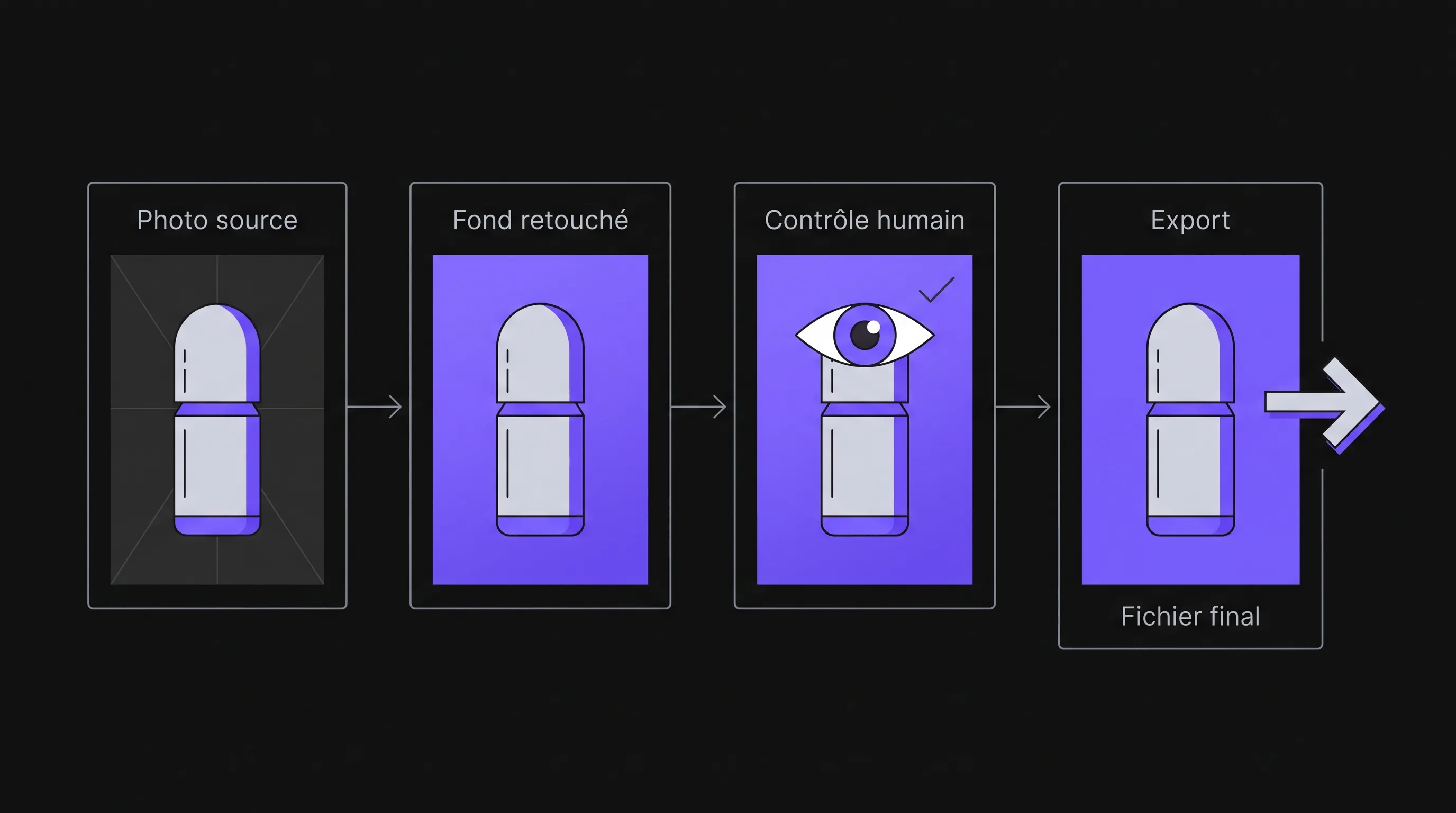
Retouching a Product Image with Artificial Intelligence
Intelligence artificielle
Outils IA
Marketing
Looking to enhance product photos with AI without reshooting your catalog? Learn how to isolate objects, swap backgrounds, and adapt visuals safely without altering seams, colors, or key product details.
October 21, 2026·10 min read
Looking for "AI image" tools to enhance your product photos without reshooting your entire catalog? AI can cut out an object, replace its background, and adapt a visual across multiple formats. But it can also alter a seam, invent an accessory, or distort a logo. For an e-commerce website, these errors distort what customers believe they are purchasing.
The right approach consists in retouching the presentation, not reinventing the product. Here is how to choose your tool, prepare a reliable retouch, and organize quality checks prior to publication.
What AI Can Retouch on a Product Photo
Distinguish between two types of interventions: those modifying the product's environment and those affecting its actual features. The former are generally easier to manage. The latter require particular vigilance.
Intervention
Relevant Use Case
Key Point to Verify
Background removal / Cutout
Isolate the product on a solid background
Handles, cables, transparency, and fine edges
Background replacement
Create an atmosphere or harmonize a catalog
Product preserved without distortion
Adding a shadow
Provide visual anchoring for the object
Light direction and ground contact
Exposure correction
Make an underexposed photo clearer
True-to-life colors and textures
AI-assisted upscaling
Adapt an image for larger displays
Absence of hallucinated details
Removing dust from a background can be acceptable. Erasing a scratch from a second-hand item is not if it reflects its genuine condition.
The same caution applies to cosmetics, textiles, or jewelry: an artificially smoothed surface can alter the perception of the item. The objective is a clear presentation, not an artificial perfection that does not exist.
"AI Image": Which Tool Should You Choose for Your Photos?
To retouch an existing image, favor an editing tool over an image generator that recreates the entire scene. The decisive factor is how much control you have over the edited area.
Simple retouching followed by layout in marketing compositions
Verify fine-editing capabilities and access tiers for AI features
Features, credit allowances, and commercial terms evolve rapidly. Test tools on your own images before committing to a subscription: a transparent bottle and a matte box present entirely different challenges.
When evaluating an AI image solution, compare the time required to achieve a validated visual, not just generation speed. An instant output that requires ten minutes of manual corrections can end up being more costly than a well-executed manual cutout.
Retouching a Product Image with AI in Five Steps
1. Prepare a Viable Source Photo
Start with the sharpest original file available, without excessive compression. The product must be completely visible, in sharp focus, and lit with balanced lighting. A blurry or overexposed photo does not turn into a reliable asset simply because an AI tool enhances its appearance.
Keep the original file separate. Also note any non-negotiable elements: reference color, shape, relative dimensions, text labels, included accessories, and texture.
For a handbag, this might include the number of pockets, strap length, and clasp position. For a bottle, attention should focus on the cap, the visible liquid level, and label markings.
AI for image processing does not replace this physical benchmark. If color accuracy is critical, compare the output to the actual physical product under proper lighting conditions, rather than comparing it solely against another screen image.
2. Cut Out and Protect the Product
Use automatic cutouts as a baseline, then inspect contours thoroughly at high zoom. Imperfections frequently appear around brush bristles, furniture legs, handles, or transparent surfaces.
In a layer-based editor, keep the cutout product on a separate layer and modify the background underneath. This separation eliminates the risk of accidentally regenerating the object.
A written prompt is not enough to lock the product in place. Asking an AI to "change nothing on the object" is far less reliable than making a precise selection and preserving the original layer. If the tool still alters the object, revert to a composite workflow using the source cutout.
For glassware and reflective surfaces, also ensure consistency in reflections. An old background scene might remain visible within the product reflections after swapping the background.
3. Modify the Setting with a Precise Prompt
Specify the desired background, surface, and lighting. Avoid vague instructions like "make this photo look more professional," which leave excessive creative freedom to the model.
Here is an example prompt for a front-facing product shot, to be used after selecting only the background:
Replace the background with a matte light gray surface and a solid backdrop. Add a soft drop shadow cast to the right, consistent with lighting coming from the left. Do not add any text, accessories, or other objects. Keep the source product completely unchanged.
Align the lighting direction with the original photo. The prompt should complement what is already visible on the object, not introduce contradictory lighting angles.
With AI image editing, a minimal scene is easier to control than a busy backdrop. Adding shelves, plants, or multiple accessories can distract attention or mistakenly suggest that certain items are included with the purchase.
4. Adjust Lighting Without Altering Textures
Gradually tweak exposure, contrast, and white balance. Regularly compare the image with the original source and, whenever possible, with the physical product.
An acceptable adjustment makes an existing detail legible. An excessive adjustment alters its fundamental nature: leather turning into plastic, brushed metal turning into chrome, or textured fabric turning smooth.
Exercise caution with restoration and generative upscaling features. They can generate realistic-looking yet fabricated characters on a label. Never use a generated detail to document a feature absent from the source photo.
If text is illegible or an essential angle is missing, a new photoshoot is almost always the safest solution.
5. Export According to the Distribution Channel
Prepare framing tailored to each destination: product page, ad campaign, marketplace, or social media post. Review each platform's guidelines before producing variations, especially regarding background requirements and added graphic elements.
Maintain adequate margins around the object to prevent automated cropping from cutting off a handle or base. Always verify how the visual renders on mobile devices.
Choose the file format according to its use: JPEG or WebP for standard web visuals, PNG when transparency is necessary and supported. Adjust compression while paying attention to small text and sharp contours, not just target file size.
AI image tools can accelerate these adaptations, but every exported format must remain sharp and readable. A successful square crop does not guarantee that a vertical crop will preserve the product properly.
Verify Fidelity Before Publishing
Set up a side-by-side comparison between the source image and the generated result, ideally at matching display scales. If the images are aligned, an overlay with transparency helps detect unwanted silhouette shifts.
Quality checks should focus on verifiable criteria:
Product identity: Shape, proportions, included components, and accessories consistent with the reference item sold.
Colors and textures: Hue, sheen, grain, and transparency matching the physical item.
Text and branding: Logos, labels, and copy free from distorted or hallucinated letters.
Visual integration: Clean edges, realistic shadows, and no unintended added elements.
Commercial context: A setting that does not misrepresent product size, intended use, or package contents.
For critical product references, have the final visual approved by someone who knows the physical product well. A graphic designer might catch an unnatural shadow while overlooking that a functional button went missing.
Retain three distinct files: the raw original, the working project file, and the approved export. This allows you to revise a retouch without having to start over from an already compressed or modified file.
Moving from One-Off Edits to a Coherent Catalog
For a small business, begin with a representative pilot batch: matte items, reflective surfaces, light-colored products on white backgrounds, and packaging with text. This test should expose catalog bottlenecks rather than simply generating a few flattering demos.
Next, document a concise visual guideline: background color, product placement, margins, shadow direction, and file-naming conventions. This ensures recurring choices remain reproducible, even across different team members.
AI-powered image automation becomes genuinely valuable once these rules are formalized. Depending on available tools and integrations, you can generate variations, match files to SKU numbers, and organize approval stages before publishing. Never assume automated batch processing guarantees flawless output on every image.
Track the total time spent per approved visual, the revision count, and the rejection rate. A straightforward formula helps evaluate efficiency gains: standard production time minus preparation, generation, and review time in the new workflow. Make sure to account for tool subscription costs.
Usage Rights and Commercial Presentation: Key Precautions
Before uploading a photo to any service, verify that you hold the rights to use and modify it. An image supplied by a photographer or vendor does not automatically grant full derivative or distribution rights.
Carefully review the software provider's terms of service: commercial use permissions, data retention policies, potential content reuse, and confidentiality. These factors are crucial when handling unreleased products or packaging under embargo.
Commercial accuracy remains paramount. In France, Article L121-2 of the French Consumer Code regulates misleading marketing practices regarding the essential characteristics of goods. Retouching must never embellish a product to the extent that it misleads buyers about the actual offer.
Can you retouch product photos with AI for free? Some tools offer free access or trials, but restrictions often apply to export resolution, usage limits, or advanced features. Always review commercial licensing terms before publishing images.
How can you keep the product 100% identical? Keep the source product's pixels locked on a protected layer and restrict AI modifications solely to the background. Double-check edges after isolating the subject. Relying solely on prompts to preserve the object is not enough.
Can AI image tools replace a professional photoshoot? They can eliminate the need for reshoots when a solid source photo already exists. However, they cannot reliably invent an angle, colorway, or fine detail that was never captured in the first place.
Should all catalog images be retouched the same way? No. A uniform backdrop works well for primary hero shots, whereas detail images should prioritize highlighting materials, seams, or finishes. Define the specific role of each image before applying standardized processing.
Structuring a Workflow Adapted to Your Catalog
Before deploying tools across your entire team, select one product line, one retouching standard, and clear validation criteria. This focused scope is sufficient to measure real efficiency gains and pinpoint exceptions.
Impulse Lab helps companies navigate AI adoption through opportunity audits, automation development, and seamless integration with existing tools. An audit identifies where automation delivers maximum ROI and where human oversight remains essential.